Showing posts with label gmail. Show all posts

Sunday, 20 January 2013

How to Send SMS from Gmail Chat

| |
0 comments


Lately Google has been added more features to their products and services. One such feature is, SMS in Gmail Chat. Now as a Gmail user, you can send text messages to your colleagues, family and more. Even mobile phone users can reply to your messages too. And you don't wanna worry about the cost of sending message within your quota. Let's see how you can make use of this feature.


SMS in Chat feature provide you 50 messages initially and you can send it until the point of 0. And every time you receive a reply through SMS in Chat, your message count will be increased by 5. But all these conditions valid for 24 hours and after 24 hours, your message count will set to 50 again. In case if you try to abuse sending SMS by sending more messages beyond the limit without getting any responses, your feature will be blocked from sending further messages.

Steps:

1. Sign in to your Gmail account.

2. Click on gear icon shown at the top right and select Mail settings from the drop down menu    .

3. Navigate to Labs in Settings page.

4. Now find SMS (text messaging) in Chat feature and click Enable option correspond to the feature.

Note: Further you can enable feature SMS in Chat gadget to send messages directly by entering mobile number.

5. Click Save Changes button below to save settings.

6. Now navigate to Chat gadget displayed at Gmail window.

7. Sign into chat if you already sign out.

8. Now there are several ways of sending SMS for your friends.

Note: Check for Supported Mobile Operators in your country before you go.


Send SMS to a person in your Gmail contact list

i. Enter your contact name in the text box Search, add, or invite at Chat widget.

ii. When your contact appears, hover over it and select Send SMS from sub menu.

iii. Select Country, enter Phone Number of your contact and Save.

iv. Now your chat window will appear. Type your message and hit Enter key to send the message.


9. SMS in Chat feature provides useful commands for you when you send SMS in Chat.
Read More

Monday, 10 September 2012

Login your Gmail account in Windows Live Messenger

| |
0 comments

Login your Gmail account in Windows Live Messenger


Since you have lots of email account in several domains, it is necessary to run their own messenger. Try to log in using your Gmail or Yahoo account, messenger will return with 80048821 error saying, Windows Live ID or Password is incorrect, because Gmail is not domain of MSN.


Go to http://www.passport.net, after the page is loaded scroll down to Sign up today. As shown below, click on Get Started Now link of Use an e-mail address you already have.


Now fill up the form with the email address you want to sign up using Windows Live Messenger and other necessary information and click on Continue button.


In next page, retype the email address as shown in the left.


Now, it will inform you to confirm your account in next page. Click on Continue button.


Now you may close the page.

Next, we’ll need to confirm our mail. They’ll send you a confirmation link in the email address that you’ve specified earlier during form fill up.

Login to your Gmail or any email account using respective domain and look for Verification mail from Windows Live Team.


Read the mail properly and click on the confirmation link.


Wait a minute! Confirmation is not over yet, you’ll have to login with the new email address and password that you’ve filled up earlier in the form.

For the successful confirmation, you’ll be welcomed to this page.


Now try to login using your Gmail or any email account from Windows Live messenger.


Note: If you have not confirmed properly you’ll be notified.


If you see this screen at the top of your Windows Live Messenger, make sure that you’ve confirmed properly.


Hope this tutorial was really helpful to you. 

▫▫▫Drop Your comments below if u enjoyed this article▫▫▫
Read More

Monday, 6 August 2012

Google talk HACKs

| |
0 comments

1. Change the font size
While holding the control key, move the scroll wheel on your mouse either up or down. This trick works while being focused in either the read or write area.

2. Insert line breaks
If you want to have a message that spans multiple paragraphs, just hold shift and hit enter. You can add as many new lines as you want to create.

3. Bold Text
To write something bold, you can use an asterisk before and after the word. For Example *Hungry Hacker*

4. Italic Text
To use italics, use an underscore before and after the word. For Example _Hungry Hacker_

5. Switch windows
Hitting tab will cycle through open windows. It will select minimized conversations, to expand them just hit enter. If you just want to cycle through IM’s and don’t care about the buddy list, control-tab will do that and will automatically expand a minimized conversation if you settle on one.

6. Invitation Tips
You don’t need to say Yes or No when someone wants to add you as a friend; you can simply ignore it, the request will go away. (On the other hand, someone with whom you chat often will automatically turn to be your friend, unless you disable this in the options).

7. Show Hyperlinks
You can show your homepage or blog URL simply by entering it in your away message (at the top of the main window). It will automatically turn to a link visible to others.
How To’s

1. Use multiple identities on Google Talk
Want to run Google Talk with multiple Gmail identities? If you have several Google Gmail accounts you also may want to run multiple instances of Google Talk This is especially important for families that share a single PC. Basically, to have “Google Polygamy” you need to run Google Talk with the following switch: /nomutex
Right-click on the desktop
Select New -> Shortcut
Paste the following into the Address box:

“C:\program files\google\google talk\googletalk.exe” /nomutex
Click Next and choose a shortcut name such as Google Talk1, Google Talk2, or something related to your Gmail account for easy remembering which account is which.


2. Use Google Talk via a Web Browser
You want to use Google Talk anywhere ? Follow these guidelines 
Opens your favourite web browser.
Go to following Website

http://www.webjabber.net:8080/jim/
Follow the instructions of the Page.
You can talk with your friends


3. Conference Calls
Open up a copy of Google Talk on all computers with which you wish to conference.
After one copy is opened make a new shortcut for Google Talk but at the end of it add /nomutex.
If you installed it to the default folder then your shortcut should read “C:\Program Files\Google\Google Talk\googletalk.exe” /nomutex.
Open 2nd instances of the software on every user’s computer.
After this start a chain: User 1 should connect on one instance to user 2. User 2 will connect on his second instance to user 3. User 3 will connect using his second instance back to user 1. With this chain everyone is connected to everyone.

4. Change Nickname
You can’t change your nickname in a way that other people will see it change. Every nickname in the Google Talk Contact List is the part that is before @gmail.com (only the alphabetical characters are used) or the name you chosen for your GMail account. To change the nickname you need to do the following:
Go to your Gmail account and change the name there.
Choose Settings, Accounts, and then Edit info. Click on the second radio button, and enter your custom name.
As a result all of your emails will have that nick as well, there is no way to seperate the two.
You can add a website in your custom message, it will be clickable when someone opens a conversation window with you.


5. Contacts
You don’t need to say Yes or No when someone wants to add you as a friend; you can simply ignore it, the request will go away. (On the other hand, someone with whom you chat often will automatically turn to be your friend, unless you disable this).


6. Play Music

It’s possible to broadcast music, MP3, etc. through Google Talk. Follow the steps given bellow:
Unplug your microphone.
Double click on the speaker icon in the lower right corner. This will open up “Volume Control”.
Select “Options” and then “Properties”. Then check the button next to “Recording” then click OK.
You may also have to change your setting under Mixer Device. Now the Recording Control screen should be up.
On my computer I selected “Wave Out Mix”. Click on the green phone in Google Talk and call your friend.
                                      
Registry Hacks

Before applying any of these Registry Tweaks follow the steps given below:
Backup your Registry
Start -> Run -> Regedit
Now Navigate to the following directory

HKEY_CURRENT_USER\Software\Google\Google Talk.
Make Changes based on the info given bellow.
Restart your PC for the changes to take effect.

The “Google/Google Talk” key has several sub-keys that hold different option values:

Accounts: This one has subkeys for each different account that has logged in on the client. These keys have different values that store the username, password and connection options.

Autoupdate: Stores the current version information. When the client checks for updates it compares Google’s response with these values. If an update is needed, it will download and update the new version.

Options: This is the most interesting part, where most of the current hacks should be used (keep reading).

Process: Stores the process ID. Probably used by Google Talk to detect if it’s already running or not.
HKEY_CURRENT_USER\Software\Google\Google Talk\Options\show_pin

If 1, shows a “pin” next to the minimize button that keeps the windows on top of all the other open windows when clicked.
HKEY_CURRENT_USER\Software\Google\Google Talk\Options\view_show_taskbutton

If 0, hides the taskbar button, and leaves the tray icon only, when the window is shown
HKEY_CURRENT_USER\Software\Google\Google Talk\Options\away_inactive

If 1, status will be set as Away after the specified number of minutes.
HKEY_CURRENT_USER\Software\Google\Google Talk\Options\away_screensaver

If 1, status will be set as Away after the specified number of minutes.
HKEY_CURRENT_USER\Software\Google\Google Talk\Options\inactive_minutes

Number of inactive minutes to become away if auto-away is on.


Keyboard Shortcuts
Use
Ctrl + E It centralizes the selected text, or the current line.
Ctrl + R It justifies to the right the selected text, or the current line.
Ctrl + L It justifies to the left the selected text, or the current line.
Ctrl + I The same thing does that Tab.
Tab It is giving the area to each of the windows opened by Google Talk.
Ctrl + Tab The same thing does that Tab but in reverse.
Shift + Tab The same thing that Ctrl + Tab does.
Ctrl + Shift + L Switch between points, numbers, letters, capital letters, roman numbers and capital roman numbers
Ctrl + 1 (Key Pad) It does a simple space between the lines.
Ctrl + 2 (Key Pad) It does a double space between the lines.
Ctrl + 5 (Key Pad) A space does 1.5 between the lines.
Ctrl + 1 (Num Pad) It goes at the end of the last line.
Ctrl + 7 (Num Pad) It goes at the begin of the last line.
Ctrl + F4 It closes the current window.
Alt + F4 It closes the current window.
Alt + Esc It Minimize all the windows.
Windows + ESC Open Google Talk (if it’s minimized, or in the tray)
F9 Open Gmail to send an email to the current contact.
F11 It initiates a telephonic call with your friend.
F12 It cancels a telephonic call.
Esc It closes the current window.
                                                                   

Google’s Secret Command-Line Parameters

There are a few secret parameters you can add to Google Talk and make it function differently.

You can use these parameters as follows:

“C:\program files\google\google talk\googletalk.exe” [PARAMETER]Parameter Use
/nomutex Allows you to open more than one instance of Google Talk
/autostart It will check the registry settings to see if it needs to be started or not. If the “Start automatically with Windows” option is unchecked, it won’t start.
/forcestart Same as /autostart, but forces it to start no matter what option was set.
/S upgrade Used when upgrading Google Talk
/register Registers Google Talk in the registry, includig the GMail Compose method.
/checkupdate Check for newer versions.
/plaintextauth Uses plain authentication mechanism instead of Google’s GAIA mechanism. Used for testing the plain method on Google’s servers.
/nogaiaauth Disables GAIA authentication method. The same as /plaintextauth .
/factoryreset Set settings back to default.
/gaiaserver servername.com Uses a different GAIA server to connect to Google Talk. Used for debug purposes only, there are no other known GAIA servers.
/mailto email@host.com Send an email with Gmail.
/diag Start Google Talk in diagnostic mode.
/log Probably has something to do with the diagnostic logging


Miscellaneous G-talk Facts
A message can be 32767 characters long.
The Gmail account ‘user@gmail.com’ can’t be invited as your friend
Read More

Thursday, 24 May 2012

How to Find Gmail account creation date

| |
1 comments

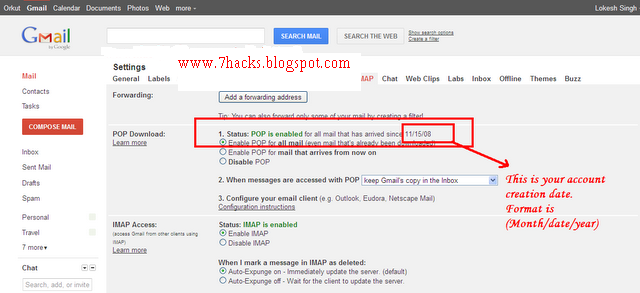
"How to find Gmail account creation date?". Well, this question has immense value when it comes to Gmail password recovery. Why??? Because, during initiating a password reset using Gmail contact form, you have to enter the Gmail account creation date, otherwise you are not allowed to reset your password.  So, here are two ways by which you can know your Gmail account creation date.

Find Gmail account creation date

Note: This article is not meant for those who have lost their password. It is meant for those who have access to their account, but don't know how to check Gmail account creation date. In future, if by some means, you lose your password and want to use Gmail accounts Form, this Gmail account creation date will help you.

Get Gmail account creation Date:

1. Gmail Welcome Mail:

All Gmail accounts receive "Gmail Welcome Mail" after they create their Gmail account. So, this "Welcome Mail" has the same date as your Gmail account creation date. So, noting this date will serve the purpose. Go to 
Gmail inbox and hit on Oldest button to get the last message. This message will be from Gmail Team. Note this mail's date. Done!!!

But, we may have deleted Welcome mail and so are unable to get the account creation date.If you are one of them, proceed to the second point.
2. Using POP:

Well, this method will work for accounts created after 2007.
Go to
Settings -> Forwarding and POP/IMAP and under POP Download, look for:

Status: POP is enabled for all mail that has arrived since "YOUR ACCOUNT Creation Date"
and you will get the required date.

Below is the Snapshot ::


find gmail account creation date, gmail password recovery


Read More

Tuesday, 10 April 2012

Play Games On Google talk!!!!!

| |
0 comments
Google Talk Games!!!!!!!!!

This is a featured page

Screenshots:

gtalk games,google

If you also want to play chess or the rock-paper-scissors game, then just follow these steps-
Read More

Sunday, 18 March 2012

Use ℊмαḯł in offline connection

| |
0 comments
Offline Gmail to browse gmail from computer by downloading the whole gmail-

Follow these steps to get started:-

1. Click Settings and click the Labstab.
2. Select Enable next to Offline Gmail.
3. Click Save Changes.
4. After your browser reloads, you’ll see a new "Offline0.1" link in the upper righthand corner of your account, next to your username. Click this link to start the offline set up process and download Gears if you don’t already have it.

 
When you hit save, Gmail will synchronize new messages you didn’t have downloaded before and remove the ones you’re not planning to read from your hard drive. You can always change your settings back to keep fewer or more messages later on — fewer messages means Offline Gmail runs faster..

New Features of Gmail Offline

The feature that Google implemented through Gmail Labs, Gmail offline, just received new functionality. Thats, even when offline you can write an email and attach any file that when u have Internet access, the email will be sent automatically. It manages to offer a little more versatility in equipment such as netbooks or laptops.

The good thing about this is that being able to read messages while offline, & now write to attach a file, compared with a desktop mail client virtually no difference.

The new functionality to attach files offline has been integrated transparently to users, so if you had “Offline” live in GMail Labs, enjoy it directly and by activating the service, too.

To activate the new functionality, simply visit the Google Labs tab, select the Offline Gmail option, provided they had not previously checked, and save your changes.
Then in the top right corner of the Gmail page you will see a link “Offline”, that we'll be able to click to start using application..
Read More

Friday, 27 January 2012

ℙʟαƴ pacman game in ℊ☺◎ℊℓℯ

| |
0 comments

Play Pacman on Google


In honor of the 30th anniversary of everyone’s favorite arcade game, Google has embedded a static artistic homage to Pac-Man on the Google homepage and installed the game itself. Google logo has been turned into a Googlified version of the Pac-Man game.
To play Pacman on google
Go to  www.google.com/pacman.


Read More

Sunday, 18 December 2011

Ḡø☺gʟε Tricks - By using IM FEELING LUCKY button

| |
0 comments
There are many codes which we may not know in google...


just type the codes one by one and click   IM FEELING LUCKY Button.

epic google


google gravity


google rainbow


who is the cutest


2204355


Annoying Google


Google Pirate

google gothic

google gothic 2


french military victories


 And a spcl code is      let it snow  


Read More

Monday, 5 December 2011

Ḡмαїʟ as Hard Drive

| |
0 comments
Gmail is really famous among users of all the email clients available on the web and that is not because it has a cool interface rather it is famous for its reliability and huge space which includes storage space of 6000 megabytes  and increasing. Google doesn’t stop here and recently Google announced that users can now buy more online storage for Google services just by paying a little amount. So why not use this online storage space and use it externally probably as a network drive or one of your own computer hard drives.


Use Google Storage Space as Google Drive
I am going to show different methods by which your can use your Gmail account space as your external hard drive that too free. You will be able to download (or should I say copy) attachments from your Gmail account to your computer just as you would do from a drive on your computer. You can also use this space to upload content direct from your computer and save it online in your Gmail account.
1. GMAIL DRIVE                      (Download)

                                      

GMail Drive is a Shell Namespace Extension that creates a virtual filesystem around your Google Mail account, allowing you to use Gmail as a storage medium.
GMail Drive creates a virtual filesystem on top of your Google Gmail account and enables you to save and retrieve files stored on your Gmail account directly from inside Windows Explorer. GMail Drive literally adds a new drive to your computer under the My Computer folder, where you can create new folders, copy and drag’n'drop files to.
With GMail Drive you can easily copy files to your Google Mail Account and retrieve them again.
When you create a new file using GMail Drive, it generates an e-mail and posts it to your account. The e-mail appears in your normal Inbox folder, and the file is attached as an e-mail attachment. GMail Drive periodically checks your mail account (using the Gmail search function) to see if new files have arrived and to rebuild the directory structures. But basically GMail Drive acts as any other hard-drive installed on your computer.
You can copy files to and from the GMail Drive folder simply by using drag’n'drop like you’re used to with the normal Explorer folders.
Because the Gmail files will clutter up your Inbox folder, you may wish to create a filter in Gmail to automatically move the files (prefixed with the GMAILFS letters in the subject) to your archived mail folder.
Please note that GMail Drive is still an experimental tool. There’s still a number of limitations of the file-system (such as total filename size must be less than 65 characters). Since the tool hooks up with the free Gmail Service provided by Google, changes in the Gmail system may break the tool’s ability to function. I cannot guarantee that files stored in this manner will be accessible in the future.
                                  
2. PHP GMAIL DRIVE (PGD)

Php Gmail Drive is a new type of file sharing utility. Unlike typical file servers (say xDrive) it uses Gmail as backend file server. You can enjoy it simply by hosting a small PHP script in your web site without any database. Gmail file space is more than 2GB, so you can imagine you already have such a big space on internet. However, you will require a Gmail account (If you don’t have any Gmail address, go GmailSwap or ask your friends.). PGD automatically connects Gmail server and fetches list of all attached files and generate downloadable links in a tree like view. If you are looking for a file server to upload your music or notes without any hassle, PGD is ideal for you. Technically speaking PGD is wrapper of Gmailer . Thought there is  no need to know hecks of PHP or Gmailer.  Just you have to check that your PHP hosting service provider has curl extension of PHP to handle HTTP/HTTPS traffic.
Features
* Successfully connects to Gmail and only grabs list of Attachments in Gmail messages.
* List of attachments are displayed with inbuilt Javascript engine. You can customize output to any other formats.
* 100% compliant to GMAILFS. So you can upload with Windows Gmail Shell extension or Linux GmailFS utilities..
* Supports Multiple Gmail accounts in the same script .
* Supports all browsers.
* Total size is less than 100 KB.
Read More

Social Profiles

Animated Social Gadget - Blogger And Wordpress Tips