Showing posts with label internet. Show all posts

Tuesday, 2 April 2013

Torch Browser→ All in one Web Browser

| |
0 comments
Well, a competitor to Google Chrome & Firefox!!
Browsers are meant only for browsing and downloading purpose, isnt it??
But this Torch Browser has lot of in-built facilities such as downloading torrent files, grabbing the media from the webpage & so on...

Drag & Drop

Whether you want search or share, everything is possible by a drag & drop with torch browser. You can search for any content on any web page by just dragging it to the left of the browser where you get all search options such as web search, image search, videos etc. You could even easily share any content present on any page by selecting and dragging them to the left where you get all your favored social networks such as Facebook, twitter, Google + etc.

Built-In Torrent

Torrent may be your daily deed, if you are a hardcore download user. A third party torrent client or a software (Eg: µTorrent) may be required to download files through torrent. Torch browser has a built-in torrent to directly download torrent contents and seed them without the need of any supporting software.

Media grabber

Its one of the hottest function of Torch browser. You can download any sort of media which is streaming, Whatever it may be either audio or video, directly from the torch browser.


Update Status or Tweet your thoughts instantly

Drag and drop could only share the content available on pages whereas when you need to share our thoughts or status, there is also a feature added for you. The share button on the top easily lets you share your status on Facebook and Twitter instantly.

(+)

  • Media grabbing works with all sites.
  • Built in torrent is great.
  • Drag and drop is effective for sharing content.
  • Instant social media interaction.

(-)

  • Normal downloading is as the case of Google chrome.
  • Interface is same as that of Google chrome.
Just try this Torch Browser     
             
Share & help us grow!!
Read More

Monday, 1 April 2013

Create Your Own Google Chrome Themes

| |
0 comments

Google Chrome has just brought most of the people’s attention to it. Users of other browser have just migrated to Google Chrome considering its speed and memory consumption.
Also Google Chrome allows us to to create our very own themes an edit can be used in our browser.

This method does not allow you to code any stuffs. You just need is, your favorite picture. When you have a favorite picture for your theme, then you can easily create your own Google Chrome theme.
An online tool,themebeta.com allows you to create own Google Chrome theme. You can create your own Google Chrome themes in just 3 steps.

  • Uploading an image
  • Choosing Colors
  • Installing the theme

If you are an advanced user, you can also edit your theme more deeply. When you just hit on the Advance tab, you can change colors of Bookmarks bar, Tool bar, Tabs bar, Status bar, text colors, button colors and more.
After creating your own creative theme, just enjoy the result by installing it or download it as a ZIP file or save the screenshot directly.
You can also edit a theme. If you say me that you have a customized theme already and if you want to change colors and pictures in that, you can edit them very well with the same tool.
After then, just double click to install it on your browser!!!
Read More

Saturday, 30 March 2013

Track Your Sent Emails In Gmail With Right Inbox

| |
0 comments

Gmail's new feature, RIGHTBOX, allows us to track our sent emails. Now the service has been updated and can even track your sent emails. The tracking here means that you can come to know when your sent email is opened by the receiver of the email. Not only this, you can also come to know when any of the link in your email has been opened. This service is available only for Google Chrome and Mozilla Firefox.


Track Your Sent Gmail


1. Go to Right Inbox . (Skip steps 1,2 and 3 if already installed)
2. Click on install now and give all the permissions.
3. After successful installation, go to Gmail and login to your account. Now Right Inbox will ask for permissions, grant all the required permissions.
4. Now try to compose an Email, you will see a button named “Track” as shown in the screenshot below. Whenever you want to get notification of your email being opened, just enable the “Track” button. Scroll below to watch a video which shows Right Inbox in action.


Read More

Sunday, 24 March 2013

☻Beam Your Files to your Friends☻

| |
0 comments

Beaming your files means sharing your files on the go without uploading it out but just transferring it on the go.


 With Just Beam It online service you can easily transfer all your files with ease to your friends.
Process for sharing is really easy you just have to browse or drag the files and than ask your friends to open the link generated on your browser and than when they open that link you simply start beaming your file to them.
just beam it
There is no file limit mentioned on their website so I think so file can be off any size but transferring speeds depends on your internet connection.


 So I think so this is good way as it does not spams the internet the files which will be downloaded on one time, so as soon as the download is over the link get over. So now its your time to beam some files to your friends have fun and enjoy.


To try this ,Click Here


Hope you Enjoyed this article......
Drop your comments below...

Read More

Saturday, 16 February 2013

Increase your Downloading Speed by 10x in Firefox

| |
0 comments

Most of the internet users are using Mozilla Firefox as their web browser. So there's a very useful tip for Mozilla Firefox users.


If your doing all the internet stuff on Firefox such as download songs and videos, this post will be useful to you.  You don't need to install any download manager software for fast download in Firefox. Its just a Firefox Extension!!!


This FireDownload Add-on will helps you to boost download speed up to 10 times higher than normal downloads in Firefox.


          Click here to download Firedownload


After installing FireDownload, restart your Firefox web browser once and enjoy the maximum download speed.

Dear Friends !!! Like our facebook fan page & get free updates on the go!!


Read More

Thursday, 24 January 2013

Fb Downloader : A tool to download your facebook albums

| |
0 comments


FBDownloader is a small, simple, easy to use application specially designed to help you download your tagged photos, friend photos and albums from facebook directly to your PC.
                                        
Basically all that you have to do is login to your Facebook account and select the images to download and you're good to go. So, if you want a tool to help you download your photos with just a click, then take FBDownloader for a spin and see if its capabilities are enough to satisfy your needs.

Bottom line is this is really good software, and it's free and easy to use. There is no reason to not download this onto your computer right now, even if you don't need it immediately. It makes downloading all your favorite photos on Facebook so easy, and gets the job done in half the time. You can download isolated photos, or entire albums, or just random tagged photos. A great feature is that as you download the photos, you can re-size them before saving. This is just great, simple free software.


                               Download fbDownloader


Read More

Saturday, 24 November 2012

15 Best Google Chrome Security Extensions

| |
0 comments


  • Web of Trust (WOT) - If you have just one Chrome security extension, Web of Trust should be it. The WOT extension throws up traffic signal warnings for every link on the web: green for safe, amber for suspicious, and red for avoid at all costs. The ratings are powered by user feedback, so feel free to throw your own kudos or condemnation up as you surf.


  • SiteAdvisor - Like Web of Trust, McAfee's SiteAdvisor Chrome extension warns you whether the link you're about to follow -- or the page you're on -- is safe to surf. SiteAdvisor's alerts, however, are powered by McAfee's security research, rather than the crowdsourced feedback of Web of Trust. Green checkmarks mean safe; red Xs mean risky.


  •  LastPass - The LastPass Chrome extension is a robust password manager that replaces all your separate web logins with a single master password. Remember that one, and LastPass will log you into the rest. Signing up for a new service? LastPass will generate a strong password for you. Got a new web form to fill out? LastPass will complete it for you, even if it's AJAX-based. And all the password data is locally encrypted, so even if the LastPass service is hacked, your passwords are safe. Stop using the Post-It notes taped to your monitor and let LastPass safely recall your passwords.


  • Secbrowsing - The Secbrowsing Chrome extension provides a single but vital function: It makes sure all your browser plug-ins are up to date. Running an old Flash plug-in with a known vulnerability? Secbrowsing will let you know. Missing the latest Java security update? Secbrowsing has your back.


  •  Click & Clean - The Click & Clean Chrome extension is the nuclear option for erasing your browsing history. Besides removing all the URLs from your browser logs, Click & Clean also deletes every cookie, web temporary file, local web artifact, LSO and download history item from your browser -- whether they could do harm or not. In short, it makes it look like you've never browsed the Internet before.


  • View Thru - When you click on a shortened URL from a service like bit.ly or tinyURL, you have no idea what kind of site (or security threat) you'll arrive at. The View Thru Chrome extension creates mouseover blurbs that expose the destination URL behind those shortened links. Never click blind again.


  •  KB SSL Enforcer - If certain sites or services offer a Secure Sockets Layer login or access option, the KB SSL Enforcer will automatically select that https:// URL. The days of using unnecessarily unencrypted web addresses are over.


  • PasswordFail - For the extra paranoid among us, the PasswordFail Chrome extension warns you off any website that stores or sends your login password as clear text. Basically, if one of these sites is hacked, your undisguised password is sitting openly in a database, ready to be tried on all your other online accounts. PasswordFail lets you know if your password is an easier hacking target by calling out websites that don't encrypt their stored or e-mailed passwords.


  • Credit Card Nanny - This Chrome extension is just like PasswordFail except Credit Card Nanny highlights websites that store or send your credit card number (and other data) as clear text. The fact is, many web transaction forms simply e-mail your credit card number to the site administrator for manual processing, making the card number, your card expiration date, pin number, or any other transaction data easily intercepted. Credit Card Nanny helps you avoid the online stores that engage in this risky business.

  •  TrustGuard - Sort of a Better Business Bureau for the web, the TrustPilot Chrome extension uses customer feedback to rate online stores for their security and business practices: Red for avoid, orange for use caution, and green for safe. If you come across an e-commerce site that looks sketchy, odds are TrustPilot can confirm or deny whether it's safe to make a purchase. And for established sites that have current security concerns -- like when when they're under a hack attack -- TrustPilot will let you know when its safe to shop there again.

  •  Secure Profile - It's all fine and good not to share your passwords or browsing data with unknown online parties, but what about the people who use your PC? The Secure Profile Chrome extension encrypts and password-protects your Chrome profile data -- including all those stored passwords and form auto-completes -- so that anyone who gains access to your machine can't also gain access to your online accounts.

  • AdBlock - As much a privacy concern as a security issue, online ads range from intrusive to risk-inducing. The AdBlock Chrome extension blocks most of them, especially those than use Flash, prior to downloading. Thus you'll browse safer and faster.


  •  BugMeNot Lite - Almost every web site seems to want you to create an account -- and to track your access history across the Internet -- even if you only plan on visiting once. With the BugMeNot Lite Chrome extension, simply click CTRL+i and those onerous login forms will be auto-completed with anonymous information. You get access, but the site gets no data. Sounds fair to me.


  • FlashBlock - If AdBlock doesn't go far enough, the FlashBlock Chrome extension will prevent any Flash content from loading on a web page. Instead, a placeholder icon is displayed, so you can unlock those select Flash elements you want to see -- like videos -- without suffering through the slowdown and potential security risks a full Flash onslaught can present.
  • Google Alarm - Perhaps more amusing the useful, the Google Alarm Chrome  xtension sounds a shrill siren alert anytime you load a page where Google is collecting browsing data, which is to say any page running Google Analytics or Google AdSense. Running this extension for just a few hours will illustrate just how often Google has their eye on you (and how glad you are this extension has a silent mode). You may not run Google Alarm long, but you'll learn a great deal while it's operating.

Read More

Thursday, 1 November 2012

Useful Google Chrome Extensions

| |
1 comments


Here are some of the Google Chrome Extensions which are useful while browsing..
These Extensions let you use your browser with ease for a better browsing..


  • AdBlock - Some claim that ad blocking is killing the free Web, others say that ad blockers are simply killing bad advertisers. Whatever your position, anyone looking for an equivalent of Greasemonkey for Chrome should start with the AdBlock Chrome extension. It strips out most ads from the majority of websites, making for a cleaner, faster (and, thanks to blocked autoplaying video ads, quieter) browsing experience.
  •  Send from Gmail - If you're a Google Chrome user, odds are you're a Gmail user, too. This Chrome extension will direct every e-mail link on a website to a Gmail window, rather than firing up MS Outlook. No more copy-and-pasting e-mail addresses into Gmail for you. As an added bonus, you can instantly email the URL to any page you're reading using this extension. This makes it so much easier to spam out that link for the latest LOLcats image or OK Go video.
  • . Google Mail Checker - The only real disadvantage to Gmail compared with a desktop-based mail client is that, unless you have Gmail open, you don't get instant notification that new mail has been received. The Google Mail Checker Chrome extension keeps a running tally of your unread Gmail messages next to the Chrome address bar, and clicking the extension icon will open a Gmail tab. Never wonder whether you've got unread Gmail again.
  • . IE Tab- Some sites are optimized to run exclusively in Internet Explorer, especially Microsoft products like Outlook Web Access. Don't give up that native IE Web functionality just because you're using Chrome. The IE Tab Chrome Extension creates a virtual IE browser within Chrome, so you get all the Internet Explorer-ness without running two different browsers.
  •  Docs PDF/PowerPoint Viewer - If Chrome has one glaring weakness, it's that it doesn't always handle PDF links very well. (I've had to kill more than a few stalled Chrome tabs that unknowingly tried to open PDF online forms.) The Docs PDF/PowerPoint Viewer Chrome extension sends any PDF or PowerPoint Web link to Google Docs, where the document can be read, surfed, printed or saved quickly and easily.
  •  FastestChrome - FireFox users will call this Chrome extension FastestFox for Chrome, which is appropriate, since the two plug-ins share the same creator. The FastestChrome extension enhances Web searches. Highlight any word on a page to get a definition of the term, or launch a search for the text. On Google search results, additional results pages are automatically loaded so you can just keep scrolling. Relevant results from other search engines and sites -- like Amazon and Wikipedia -- are interlinked into standard Google search results. On Wikipedia pages, related articles are automatically loaded into the left-hand column. If you perform any amount of web research on a regular basis, the FastestChrome extension gets very addictive, very fast.
  • Stop Autoplay for YouTube - There are a lot of Chrome extensions that stop videos from automatically playing when you visit their host pages, but the Stop Autoplay Chrome Extension goes the extra mile: It stops autoplay but still pre-buffers the video. For those of you with slow connections, no longer must you suffer through stuttering YouTube playback while you wait for the entire video to load. Simply wait for the progress bar to fill up, then hit play; your video will be waiting for you.
  •  Feedly - If you have bookmarked RSS feeds from Google Reader, Twitter, Delicious, YouTube or Amazon, the Feedly Chrome extension is your new best friend. Feedly automatically imports your feeds, then arranges the content into a eye-pleasing magazine page. The Feedly extension also keeps a running tally of your unread items in the address bar, so you know exactly how many stories await in your new personal news site.
  •  GooglePreview - The GooglePreview Chrome Extension is simple: It adds a thumbnail to the left of any Google search result showing a snapshot of the listed website. This is very helpful when you're looking for a site you visited but didn't bookmark, as the thumbnail image can help jog your memory. Also, if there are (ahem) unsavory images on the page, you'll know before you open the link. 
  • Session Manager - Sometimes bookmarks aren't enough. Sometimes you need to save a web page exactly as it is, with your account logged in and certain online work already in progress. The Session Manager Chrome extension is there for you in these situations. Simply click the cardboard box icon next to the address bar, and Session Manager will offer a Save option for any web page you're running. All saved web pages are timestamped, so you can return to any version of your in-progress work at any time. Skip login screens and configuration menus and return to any page exactly as you left it. It sounds trivial, but for those of us that bounce between multiple web apps and interfaces, Session manager is a time-saver that makes a noticeable difference.
Read More

Friday, 17 August 2012

BROWSER →→ BROWSER File Sharing!!!!

| |
1 comments

Friends...............A useful facility,which we may have not known!!
.Actually This process is so simple that even a newbiee can do it.


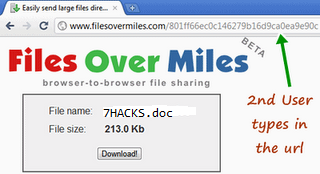
Step 1 : Go to FilesOverMiles website. Click "Browse" and select the file to transfer.


Step 2 : You will get a LINK instantly as soon as you click on the file to send..Give that link over to your friend through GTALK or any other process.


Step 3 (2nd User) : The PC on the receiving end of this file transfer must go this unique url which will show a download option from the file to be transferred PC to PC.


Note : The transfer file will continue to be available for download until the web page on 1st user’s browser is closed.

It provides a good  Speed and security+ SAve of time.........
Read More

Monday, 6 August 2012

Google talk HACKs

| |
0 comments

1. Change the font size
While holding the control key, move the scroll wheel on your mouse either up or down. This trick works while being focused in either the read or write area.

2. Insert line breaks
If you want to have a message that spans multiple paragraphs, just hold shift and hit enter. You can add as many new lines as you want to create.

3. Bold Text
To write something bold, you can use an asterisk before and after the word. For Example *Hungry Hacker*

4. Italic Text
To use italics, use an underscore before and after the word. For Example _Hungry Hacker_

5. Switch windows
Hitting tab will cycle through open windows. It will select minimized conversations, to expand them just hit enter. If you just want to cycle through IM’s and don’t care about the buddy list, control-tab will do that and will automatically expand a minimized conversation if you settle on one.

6. Invitation Tips
You don’t need to say Yes or No when someone wants to add you as a friend; you can simply ignore it, the request will go away. (On the other hand, someone with whom you chat often will automatically turn to be your friend, unless you disable this in the options).

7. Show Hyperlinks
You can show your homepage or blog URL simply by entering it in your away message (at the top of the main window). It will automatically turn to a link visible to others.
How To’s

1. Use multiple identities on Google Talk
Want to run Google Talk with multiple Gmail identities? If you have several Google Gmail accounts you also may want to run multiple instances of Google Talk This is especially important for families that share a single PC. Basically, to have “Google Polygamy” you need to run Google Talk with the following switch: /nomutex
Right-click on the desktop
Select New -> Shortcut
Paste the following into the Address box:

“C:\program files\google\google talk\googletalk.exe” /nomutex
Click Next and choose a shortcut name such as Google Talk1, Google Talk2, or something related to your Gmail account for easy remembering which account is which.


2. Use Google Talk via a Web Browser
You want to use Google Talk anywhere ? Follow these guidelines 
Opens your favourite web browser.
Go to following Website

http://www.webjabber.net:8080/jim/
Follow the instructions of the Page.
You can talk with your friends


3. Conference Calls
Open up a copy of Google Talk on all computers with which you wish to conference.
After one copy is opened make a new shortcut for Google Talk but at the end of it add /nomutex.
If you installed it to the default folder then your shortcut should read “C:\Program Files\Google\Google Talk\googletalk.exe” /nomutex.
Open 2nd instances of the software on every user’s computer.
After this start a chain: User 1 should connect on one instance to user 2. User 2 will connect on his second instance to user 3. User 3 will connect using his second instance back to user 1. With this chain everyone is connected to everyone.

4. Change Nickname
You can’t change your nickname in a way that other people will see it change. Every nickname in the Google Talk Contact List is the part that is before @gmail.com (only the alphabetical characters are used) or the name you chosen for your GMail account. To change the nickname you need to do the following:
Go to your Gmail account and change the name there.
Choose Settings, Accounts, and then Edit info. Click on the second radio button, and enter your custom name.
As a result all of your emails will have that nick as well, there is no way to seperate the two.
You can add a website in your custom message, it will be clickable when someone opens a conversation window with you.


5. Contacts
You don’t need to say Yes or No when someone wants to add you as a friend; you can simply ignore it, the request will go away. (On the other hand, someone with whom you chat often will automatically turn to be your friend, unless you disable this).


6. Play Music

It’s possible to broadcast music, MP3, etc. through Google Talk. Follow the steps given bellow:
Unplug your microphone.
Double click on the speaker icon in the lower right corner. This will open up “Volume Control”.
Select “Options” and then “Properties”. Then check the button next to “Recording” then click OK.
You may also have to change your setting under Mixer Device. Now the Recording Control screen should be up.
On my computer I selected “Wave Out Mix”. Click on the green phone in Google Talk and call your friend.
                                      
Registry Hacks

Before applying any of these Registry Tweaks follow the steps given below:
Backup your Registry
Start -> Run -> Regedit
Now Navigate to the following directory

HKEY_CURRENT_USER\Software\Google\Google Talk.
Make Changes based on the info given bellow.
Restart your PC for the changes to take effect.

The “Google/Google Talk” key has several sub-keys that hold different option values:

Accounts: This one has subkeys for each different account that has logged in on the client. These keys have different values that store the username, password and connection options.

Autoupdate: Stores the current version information. When the client checks for updates it compares Google’s response with these values. If an update is needed, it will download and update the new version.

Options: This is the most interesting part, where most of the current hacks should be used (keep reading).

Process: Stores the process ID. Probably used by Google Talk to detect if it’s already running or not.
HKEY_CURRENT_USER\Software\Google\Google Talk\Options\show_pin

If 1, shows a “pin” next to the minimize button that keeps the windows on top of all the other open windows when clicked.
HKEY_CURRENT_USER\Software\Google\Google Talk\Options\view_show_taskbutton

If 0, hides the taskbar button, and leaves the tray icon only, when the window is shown
HKEY_CURRENT_USER\Software\Google\Google Talk\Options\away_inactive

If 1, status will be set as Away after the specified number of minutes.
HKEY_CURRENT_USER\Software\Google\Google Talk\Options\away_screensaver

If 1, status will be set as Away after the specified number of minutes.
HKEY_CURRENT_USER\Software\Google\Google Talk\Options\inactive_minutes

Number of inactive minutes to become away if auto-away is on.


Keyboard Shortcuts
Use
Ctrl + E It centralizes the selected text, or the current line.
Ctrl + R It justifies to the right the selected text, or the current line.
Ctrl + L It justifies to the left the selected text, or the current line.
Ctrl + I The same thing does that Tab.
Tab It is giving the area to each of the windows opened by Google Talk.
Ctrl + Tab The same thing does that Tab but in reverse.
Shift + Tab The same thing that Ctrl + Tab does.
Ctrl + Shift + L Switch between points, numbers, letters, capital letters, roman numbers and capital roman numbers
Ctrl + 1 (Key Pad) It does a simple space between the lines.
Ctrl + 2 (Key Pad) It does a double space between the lines.
Ctrl + 5 (Key Pad) A space does 1.5 between the lines.
Ctrl + 1 (Num Pad) It goes at the end of the last line.
Ctrl + 7 (Num Pad) It goes at the begin of the last line.
Ctrl + F4 It closes the current window.
Alt + F4 It closes the current window.
Alt + Esc It Minimize all the windows.
Windows + ESC Open Google Talk (if it’s minimized, or in the tray)
F9 Open Gmail to send an email to the current contact.
F11 It initiates a telephonic call with your friend.
F12 It cancels a telephonic call.
Esc It closes the current window.
                                                                   

Google’s Secret Command-Line Parameters

There are a few secret parameters you can add to Google Talk and make it function differently.

You can use these parameters as follows:

“C:\program files\google\google talk\googletalk.exe” [PARAMETER]Parameter Use
/nomutex Allows you to open more than one instance of Google Talk
/autostart It will check the registry settings to see if it needs to be started or not. If the “Start automatically with Windows” option is unchecked, it won’t start.
/forcestart Same as /autostart, but forces it to start no matter what option was set.
/S upgrade Used when upgrading Google Talk
/register Registers Google Talk in the registry, includig the GMail Compose method.
/checkupdate Check for newer versions.
/plaintextauth Uses plain authentication mechanism instead of Google’s GAIA mechanism. Used for testing the plain method on Google’s servers.
/nogaiaauth Disables GAIA authentication method. The same as /plaintextauth .
/factoryreset Set settings back to default.
/gaiaserver servername.com Uses a different GAIA server to connect to Google Talk. Used for debug purposes only, there are no other known GAIA servers.
/mailto email@host.com Send an email with Gmail.
/diag Start Google Talk in diagnostic mode.
/log Probably has something to do with the diagnostic logging


Miscellaneous G-talk Facts
A message can be 32767 characters long.
The Gmail account ‘user@gmail.com’ can’t be invited as your friend
Read More

Social Profiles

Animated Social Gadget - Blogger And Wordpress Tips